Setting up, step by step
From applying to your first full service, one step at a time. Each step says what it is for and what to press. Tick them off as you go: this page remembers where you got to, on this device.
Apply
Tells us about your restaurant, so we can set it up for you.
- Open Apply and fill in the form. It takes a minute.
- You get a private page for your application straight away. Keep it.
Not sure yet? Try the demo first.
Confirm your email
Proves the address is yours. Reset codes for your PIN go there later.
- Open the email we send and press its link.
- Nothing in the inbox? Look in your spam or junk folder.
We can only approve an application once its email is confirmed.
Wait for approval, then bookmark your page
Somebody reads every application. Once approved, your page holds everything you need to set up.
- Usually within a working day. Your application’s page changes to Approved.
- Bookmark that page. It has your downloads, your pairing code, your links and your settings.
Install the front desk
The front desk is the app by your till. It runs your floor, orders, bills and printers, and it keeps working when the internet drops.
- On the PC by the till, open your bookmarked page and choose Windows.
- Follow its two-minute step first: it tells Windows Security to leave the download alone.
- Download, unzip, and run the installer. If Windows says Windows protected your PC, choose More info, then Run anyway.
- On the tablet itself, open your bookmarked page and choose Android tablet. It checks the tablet suits the app: Android 11 or newer.
- Download it. When Android asks, allow Chrome to install unknown apps, then tap Install.
- Keep the tablet plugged in and on the restaurant’s wifi.
Waiters’ phones and the kitchen screen need no app: the front desk serves them.
Connect it to your restaurant
Joins this computer or tablet to your restaurant, and brings down your floor plan and menu.
- The first time the front desk opens, it asks for a pairing code.
- Type the code from your page. It works once.
Changing computer later? Get a new code in your settings. Your floor plan and menu stay as they are.
Choose the owner’s PIN
One six-digit PIN for you: it opens your settings online, and it guards tax, staff hours and records at the till.
- The desk asks for it after connecting. Choose six digits nobody would guess.
- Forgotten it? Forgot the PIN? emails a code to reset it, or ring us.
Draw your floor plan
Your tables, as they stand in the room, so the desk can seat people and show who is where.
- At the front desk, open Restaurant › Edit floor plan… It opens in your browser.
- Draw your tables, then press Publish Layout.
Build your menu
Your sections and dishes, with their prices and choices, for the desk, the waiters and your online menu.
- Open Restaurant › Edit menu… and add your sections and dishes, with any choices (“which milk”).
- Press Publish Menu, then Restaurant › Sync Cloud at the desk to pick it up straight away.
Set up bills, tax and printers
What goes on every bill, your taxes, and where kitchen tickets and bills print.
- Front desk › Bill & tax…: your address, phone and tax number, and your taxes. The sample bill shows the result as you type.
- Front desk › Printers…: Add printer, tick Bills, Kitchen tickets or both, and press Test.
Connect staff phones
Waiters take orders at the table on their own phones, and their hours are kept.
- Put the phone on the same wifi as the front desk (not a guest network).
- At the desk, open Front desk › Staff Login… and scan its QR code with the phone’s camera.
- Type a name, choose the job tonight (Waiter, say) and press Clock in.
The code changes every few minutes, so a photo of it stops working.
Set up the kitchen screen
Every ticket on a tablet in the kitchen the moment it is sent, and the cooks mark dishes ready.
- Put the tablet on the restaurant’s wifi.
- On the desk, Front desk › Staff Login… › Setting up a kitchen screen. Scan that code on the tablet and choose its counters (the grill, the bar…).
- Bookmark the page on the tablet. It stays connected for good.
Let guests order from their phones Optional
A code on each table opens your menu on the guest’s own phone. Nothing reaches the kitchen until you approve it.
- Front desk › Table QR codes…, then Print, and stand a card on each table.
- When you are ready, press Turn on. Orders appear at the desk under the bell.
Save your owner’s page
Tonight’s figures on your phone, from anywhere: orders, bills, tables in use, who is on shift.
- Open your owner’s page from your bookmarked page. It opens with the same PIN.
- Add it to your phone’s home screen. It can look, but never change anything.
Run a service
The everyday part: seat, order, serve, bill, and close the night.
- When a table leaves, press Finish & print bill, at the desk or on a waiter’s phone. The table goes to cleaning.
- Two parties at one table? Tap it and press Split table. Each gets a letter (3A, 3B), a note like Window side so the waiters can tell them apart, and its own order and bill. Change the quick picks in Front desk › Front desk settings.
- At closing, press End Service. It frees every table, ends every shift and files the night in History.
- Updates to the front desk install at End Service, when nobody is in the middle of an order.
You’re ready for service
Everything is set up. If anything is stuck, email admin@thirdextra.com or see the help page.
Your links
There are no usernames and no passwords. You were sent one or two private web links, and each one opens a different part of the app.
-
Your owner link ends in
/edit/. It opens the Layout Editor, where you build your floor plan. The links along the top of it take you to the Menu Builder and to the front desk. - Your front desk link is the shorter one. It shows the floor and lets staff seat guests, but it cannot change the layout.
Put the front desk link on the tablet or computer your host uses, and keep the owner link to yourself.
Lost the link? Open Open your restaurant and paste whatever part of it you still have. If it has gone entirely, contact us and we will issue a new one; the old link stops working the moment we do.
Your PIN
The first time anyone opens one of your links, they are asked to create a six-digit PIN. It is one PIN for your restaurant: the same PIN opens the editors, the owner’s report and the front desk view. After that, the PIN is needed on each new device or browser, and again roughly every twelve hours.
The PIN cannot be:
- the same digit repeated, like
111111; - a run, like
123456or654321; - a repeating pattern, like
121212or112233; - one of a handful of very common choices.
Use the numbers on your keypad only. A PIN typed with a different keyboard may look right and then be impossible to type in again.
If you forget your PIN
On the PIN screen, choose Reset your PIN. We email a one-time code to the address held for your restaurant; enter it and you can pick a new PIN straight away.
- Your current PIN keeps working until a code is actually used, so asking for one can never lock you out.
- Codes last 30 minutes and work once.
- Not in your inbox? Check your spam or junk folder. Our emails come from no-reply@thirdextra.com.
- You can reset even while the link is locked after too many wrong tries — no need to wait.
- No email address on file, or nothing arrives? Contact us. We will check who you are and read a code out over the phone.
The same PIN on the front desk
From version 0.60 the front desk uses your owner’s PIN too — asked for on Bill & tax and Hours, and before resetting a member of staff’s PIN. One PIN for the desk, your links, your owner’s page and your settings. The desk keeps a copy, so it works with the internet down; choosing or changing it needs the internet, and a change made online reaches the desk within a minute. It is under Owner’s PIN in the desk’s settings. A desk set up before then asks once to switch to it. Forgotten it? Press Forgot the PIN? under the lock.
- Ask for a code tells us: we ring the restaurant to check it is you, then read you a one-time code. The code is also emailed to your restaurant’s address — if it is not in the inbox, check the spam or junk folder.
- Once you have the code, press I have a code to type it in. I have a code on its own does not tell us anything.
- Enter the code and your new PIN twice, and press Set new PIN. Codes last 30 minutes and work once; your old PIN keeps working until one is used.
- The desk needs to be online for this, because the code is checked by us.
Ten wrong attempts lock your links for fifteen minutes. Because they share one PIN, the lock covers all of them — the editors, the owner’s report and the front desk view. You can still reset the PIN while it is locked, or contact us and we can lift the lock straight away.
Building your floor plan
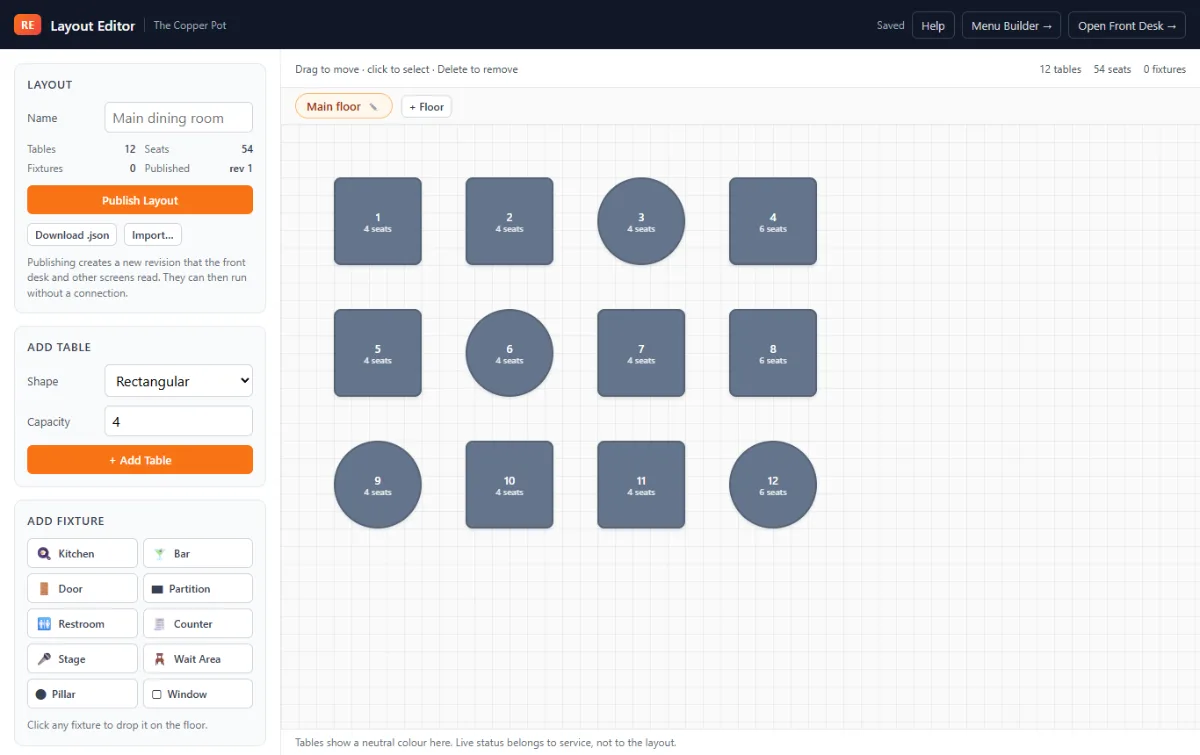
Open your owner link and you land in the Layout Editor.
-
Add tables. Pick a shape and how many people it seats.
The table is drawn to match, and gets a name like
T1that you can change to whatever your staff actually call it. - Add the room. Kitchen, bar, doors, restrooms, pillars and partitions. These are landmarks, not seating — nobody is ever seated at them.
- Drag things into place. Items snap to a grid. Position matters: tables placed near each other can be suggested as a pair to push together for a larger party.
- Name the layout — “Main dining room”, “Terrace”.
Your work saves by itself as you go; the header tells you when it was last saved. If your connection drops mid-edit, your changes are held on the device and sent as soon as it returns.
Select an item and press Delete to remove it, or Esc to deselect.
If you have more than one floor
A terrace, a mezzanine, an upstairs function room — each can be its own floor. Press + Floor above the plan to add one, and use the tabs to move between them. Double-click a tab, or use the pencil on it, to rename a floor to whatever your staff call it.
Each floor has its own plan, and the panel on the left lists only the floor you are looking at. Tables are only ever suggested as a pair to push together when they are on the same floor, so nobody is offered a table one storey away.
Your front desk gets the same tabs, so a host can switch between floors during service.
Building your menu
From the Layout Editor, follow Menu Builder at the top of the page.
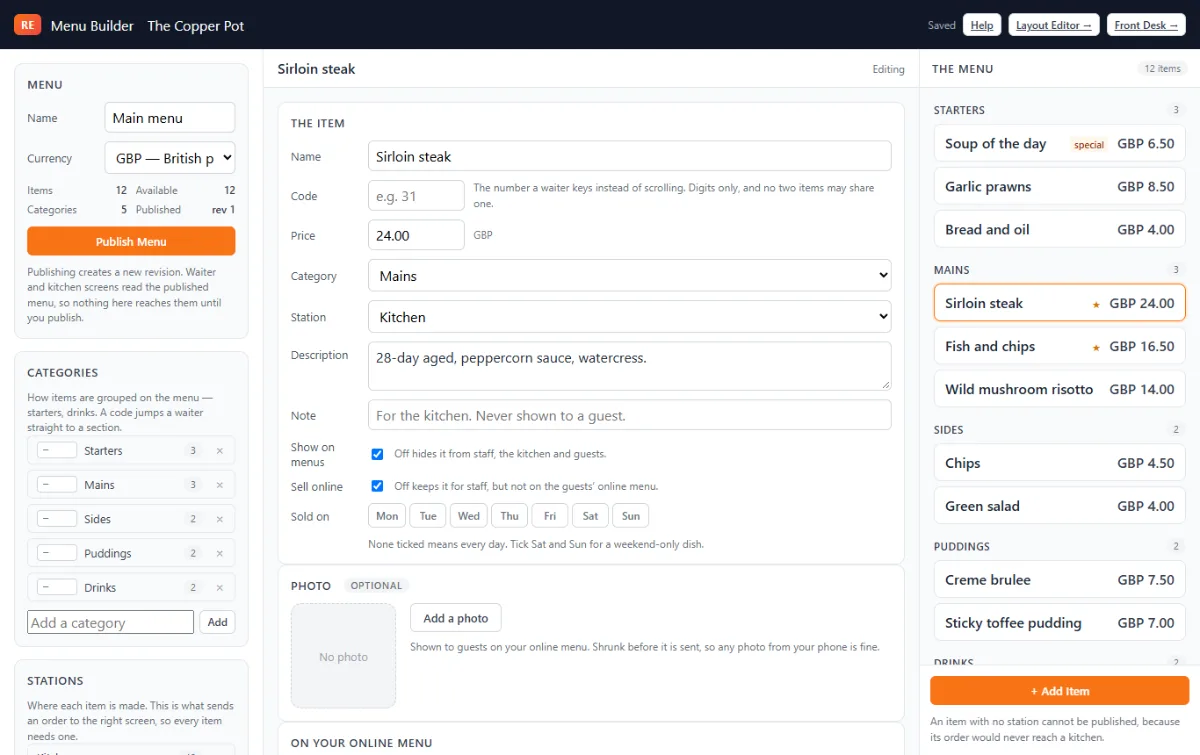
The first time, it asks for your currency. Every price is typed in it, so it comes before anything else. It can be changed later in the Menu box, but prices are not converted — change it before you add prices, not after.
A menu is built from three things, and the difference between the middle two matters.
- Categories are how your guests read the menu — starters, mains, cold drinks.
- Stations are where a dish is made — the kitchen, the juice counter, the bar. This is what will send an order to the right screen.
- Items are the dishes themselves, each in one category and made at one station.
They are kept apart because a category routinely spans stations: a “Starters” section holding a soup from the kitchen and a juice from the counter is perfectly normal.
Add a category and a station first, then press + Add Item
and fill in the panel on the left: name, price, which category it belongs
to, which station makes it, and an optional note. Type prices the way you
would write them — 3.50 — and set the currency
once at the top.
Each dish has three switches for where and when it is sold:
- Show on menus — untick it to take a dish off without deleting it. Once you publish, it is on no menu anywhere — not your staff’s order screens, not the menu page at the front desk, not the kitchen and not the guests’ online menu — until you tick it again.
- Sell online — untick it for a dish your staff can still order but guests cannot order from their phones, like a staff meal or something that does not travel.
- Sold on — tick the days a dish is available, such as Sat and Sun for a weekend brunch. With no days ticked it is sold every day. On other days it is left off the order screens, and the online menu shows it as “Sat and Sun only”.
The item list shows a small tag on dishes sold on some days only, or kept off the online menu, so you can see them at a glance. The tabs above the list filter it to one category.
Menus that use Sell online or Sold on need the front desk app at version 0.24 or later. An older desk keeps its current menu and asks to be updated.
Removing a category or a station does not delete the dishes in it. They move to the first remaining one, so nothing disappears quietly.
Choices on a dish
A choice is a list like Milk, How would you like it? or Ice, made once and ticked onto every dish that uses it. Each choice asks two things:
- How many — One (whole, oat or almond), or Several, up to a number (extra shot, syrup, decaf).
- Required — ticked, the dish cannot be added until something is picked, on the waiter’s screen and on the online menu. Unticked, it can be left alone.
Tick an option as standard and it comes already picked — Medium for a steak — so nobody has to stop and ask.
Publishing
Editing changes only your working copy. Nothing reaches your staff until you press Publish, in the middle of the top bar of the Menu Builder and the Layout Editor. While you have changes that are saved but not published, it turns orange and says Publishing pending — Publish now, with a yellow note under the bar; once everything is published it goes quiet and says Published. Your floor plan and your menu are published separately, and each keeps its own revision numbers.
Publishing takes a numbered, permanent snapshot — revision 1, then 2, and so on. Old revisions are never overwritten or deleted, so you always have a record of what your floor looked like and when.
Your front desk screens pick up the new revision the next time they load or when someone presses Reload Layout.
Nothing reads your published menu yet — the waiter and station screens that will are being built. Publishing it now is still worth doing: it is how you check the menu is right, and those screens will pick it up the day they arrive.
Publishing during service is safe. Staff keep using the revision already on their screen until they reload.
It also checks every time the desk is switched on, so anything published overnight is already there in the morning without anybody pressing anything.
Running the front desk
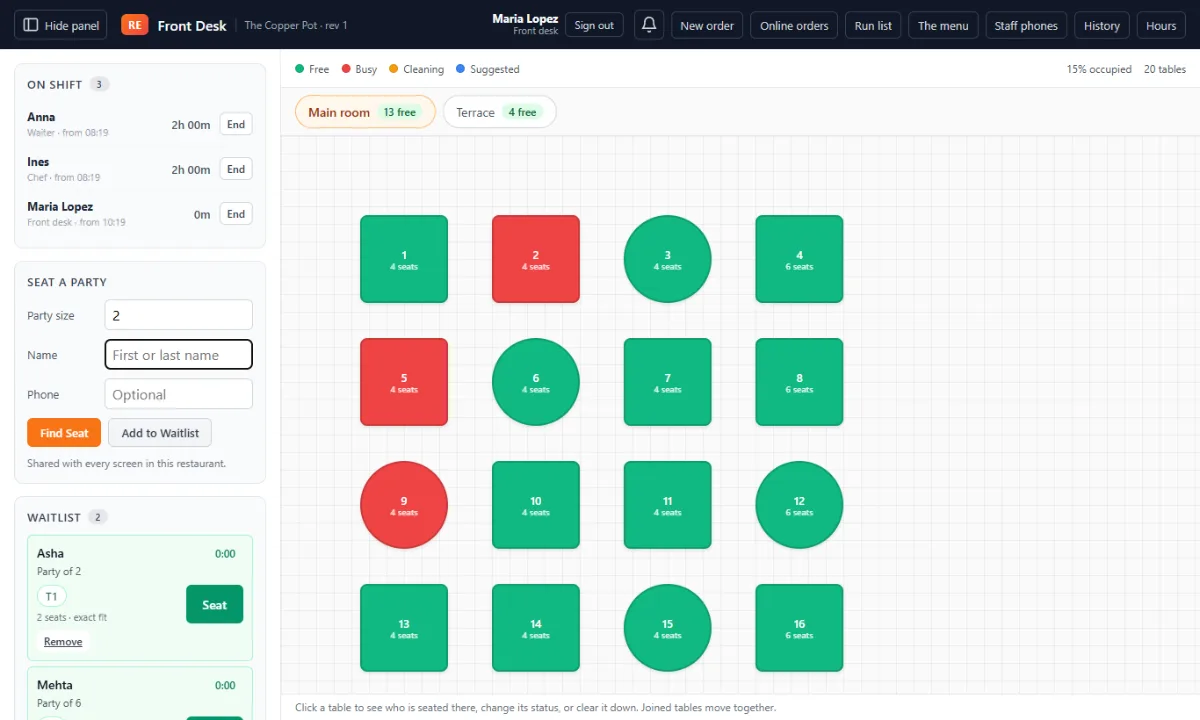
Open the front desk link. You will see your floor plan and, down the side, the tools for a service.
Who is on the desk
The front desk is a shared machine, so it asks who is working it. The blue square at the top of the screen shows the name; tap Sign in and the box lists the people on shift now. Tap your name, check it is you above the PIN box, enter your PIN and press Sign in (Clear goes back to the names). Orders keyed at the counter are then recorded against you, and when the kitchen finishes one of them the counter gets the same ready alert a waiter’s phone does.
Not on the list? You are not on shift yet. Scan the code on Staff Login with your phone, or — working the counter without your phone — open Staff Login on the desk and press Log in at the front desk: pick your name, enter your PIN, and you are on shift and signed in at once.
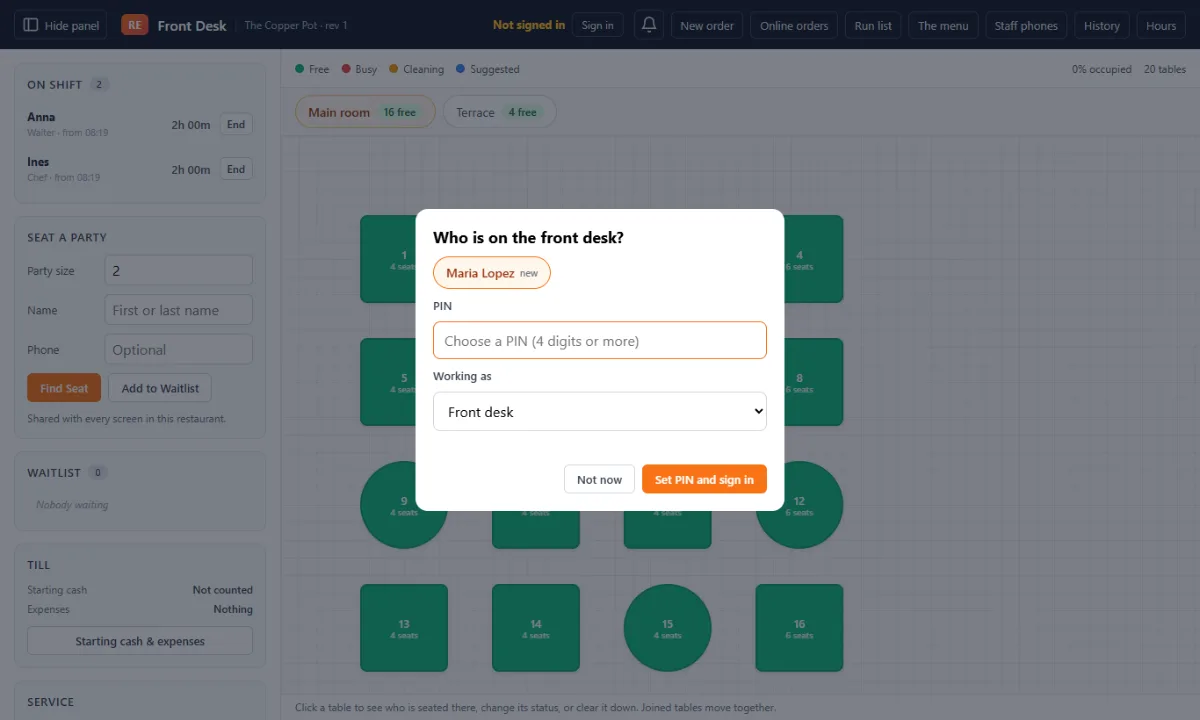
Your own PIN, four to eight digits. The first time somebody signs in they choose it, and nobody can read it back afterwards — not your staff, not us. Staff can see and change their own on their phone after they scan in. Forgotten one? On the desk’s Staff Login screen press Reset PIN beside the name (behind your front desk PIN): they choose a new one next time they sign in.
Until somebody signs in, the desk still shows everything — the floor, the bills, tonight’s takings — and simply will not do anything: taking an order, seating a party or approving an online order asks who is there first. It signs itself out after half an hour with nobody touching it, and at the end of a service. There is a Sign out beside the name for handing the counter over.
Choosing how long before it locks. On the desk, open the Front desk menu at the top of the window and choose Front desk settings. Pick 5 minutes, 30 minutes, 1 hour, 2 hours or Never, and press Save. Only doing something counts — seating, ordering, taking payment — not looking at the floor. Never means it never locks by itself: somebody still signs in, so orders still carry a name. Closing the app, an update or restarting the computer signs the desk out whichever you pick.
A restaurant that has not added any staff yet is left alone: the desk works as it always did until there is somebody to sign in.
Table colours
- Free — available now.
- Busy — a party is seated.
- Cleaning — being reset, and not offered to anyone.
Tap a table to move it on: free, then busy, then cleaning, then free again. Tables joined for one party move together, so you only tap one of them.
Do not want the cleaning step? Some rooms clear a table as the guests stand up, and an extra colour to tap is just an extra tap. On the desk, open Front desk → Table cleaning and choose It is free straight away. A finished table then goes from busy to free, Cleaning disappears from every floor plan in the building, and any table sitting at cleaning right then is freed. You can turn it back on at any time.
Seating a party
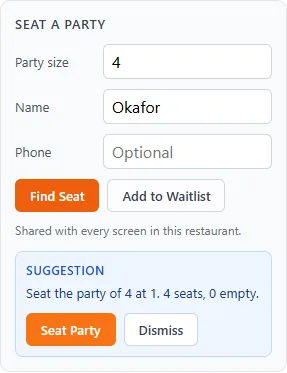
Enter the party size and press Find Seat. You are offered the tightest free table that fits, so bigger tables stay clear for bigger groups. If no single table works, neighbouring free tables are suggested to push together — fewest tables first.
The waitlist
Nothing free? Take the guest's name — first or last, whichever they give you — and a phone number if they offer one, then press Add to Waitlist. The name is what you call across the room later, so it is the one thing the list insists on.
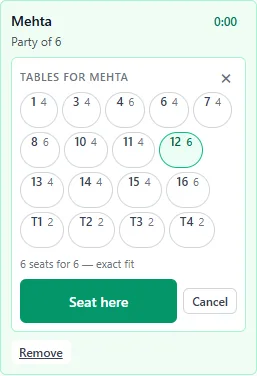
Each entry shows how long they have been waiting, counting up. It turns amber after ten minutes and red after twenty, so a party who has been forgotten is visible without reading a single number. When a table they fit comes free, the entry turns green and names the tables — T3 + T4 if two need pushing together — so you know what you are agreeing to before you tap Seat.
Not the tables you would have picked? Tap the table name and choose your own. The app knows the arithmetic; you know the room. A table big enough for the party on its own replaces the one picked before, rather than being pushed against it.
Taking an order
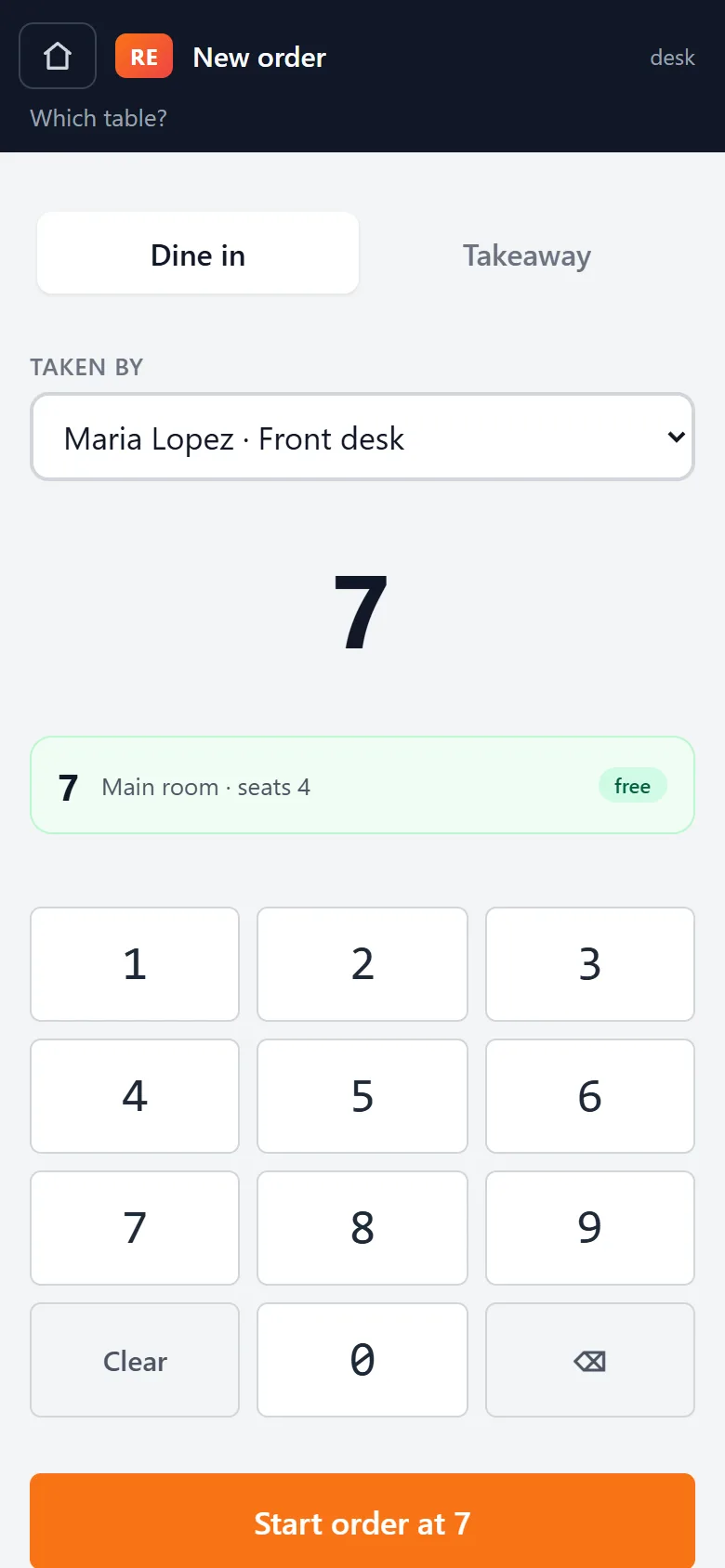
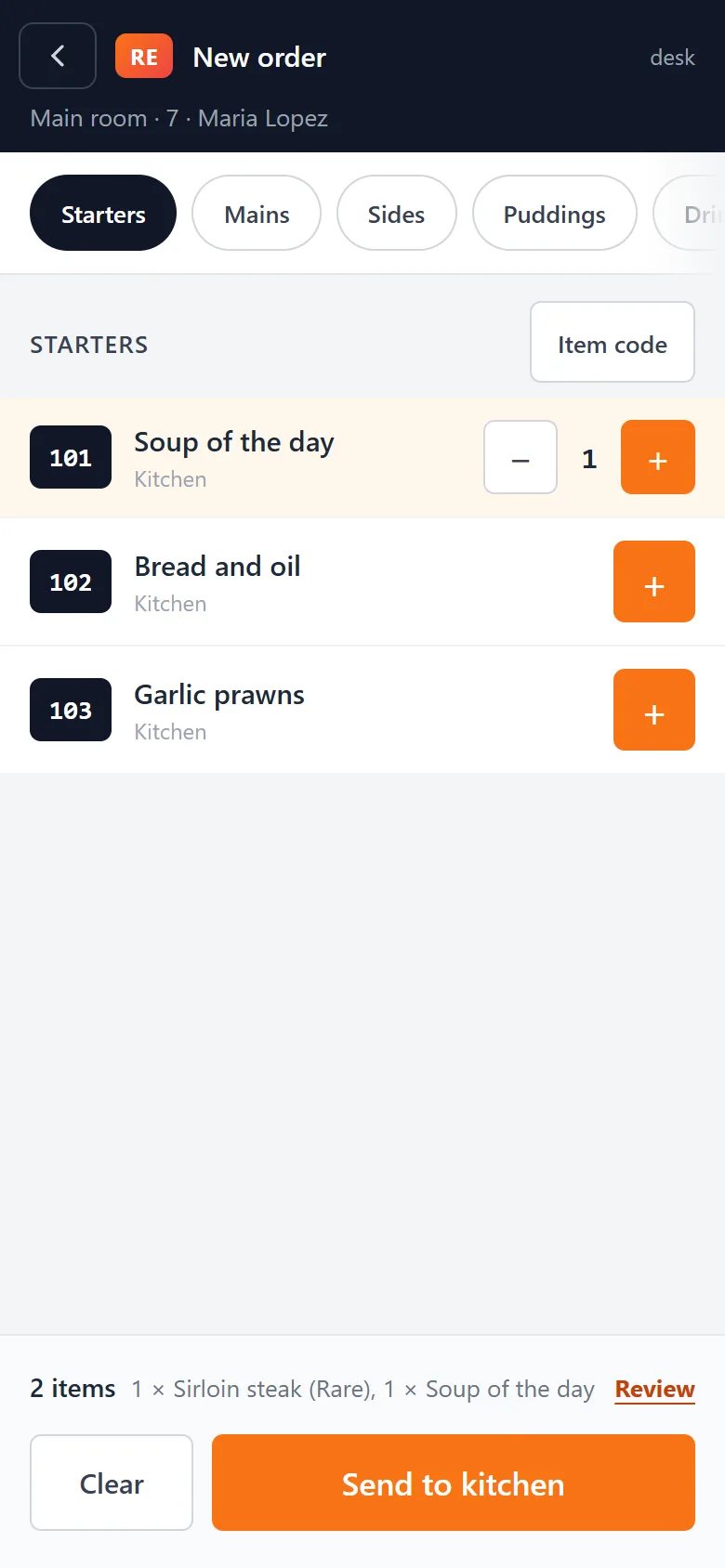
New order works the same on the desk and on a waiter’s phone. Key the table number, add the dishes — or type a dish’s code — and press Send to kitchen. Each dish goes to the kitchen screen that makes it, and the screen goes back to Which table?, ready for the next one.
Who took the order
The counter is not one person — several people work it through a service. At the top of New order on the desk there is a Taken by list of everyone clocked on right now: pick your name and the order carries it onto the run list, the kitchen ticket and the night’s history. Takeaways ask the same question.
The counter will not start an order until it has been told, so pick your name once when you take over and it is remembered from then on. The list is only the people clocked on right now — there is no “front desk” to hide behind, because somebody is always working the counter. Waiters’ phones are never asked: a phone already knows whose shift it is.
Nobody clocked on yet? The screen says so and lets the order through without a name, so a Friday at seven is never held up by a phone somebody has not picked up. Start the shift and the next order carries it.
The kitchen screen
Each kitchen or bar screen shows the tickets for its own station, with how long each has been waiting. Tap a dish when it is ready, or All ready for the whole ticket, and whoever took the order is told.
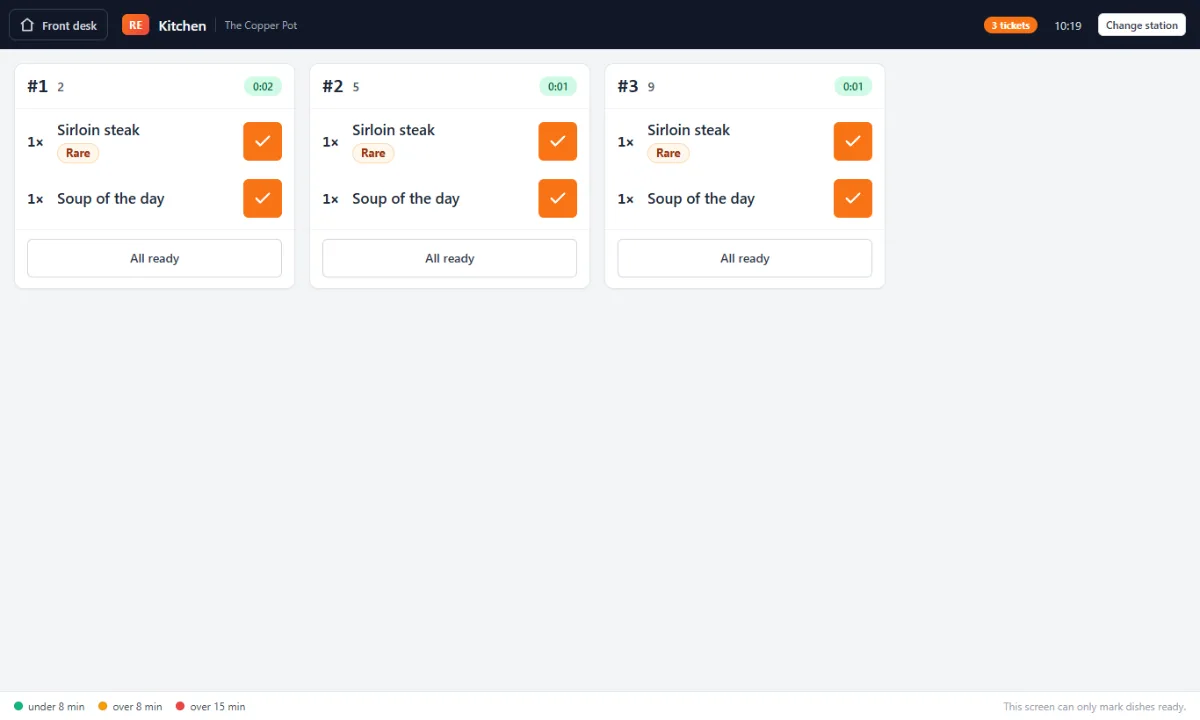
Dark screens, and bigger text
Every screen can be light or dark, and can have larger text, on its own: press Settings on the kitchen screen, the gear on a waiter’s phone, or Settings… in the front desk’s menu. Match the system follows the device, so a phone set to go dark in the evening takes the app with it. QR codes stay dark on white, so they still scan.
End of service
End Service frees every table and clears the waitlist, ready for the next shift. Your floor plan is not touched.
The till: starting cash and expenses
On the desk, Front desk → Till (or the Till box in the side panel) is where the cash drawer is kept. Enter the starting cash before the first sale, and add each expense as it happens — what it was for and what it cost. Untick Taken out of the drawer for a cost paid another way, such as by card: it still appears on the sales report, but not against the cash. The page shows what should be in the drawer. A new service starts with an empty drawer.
Taking payment
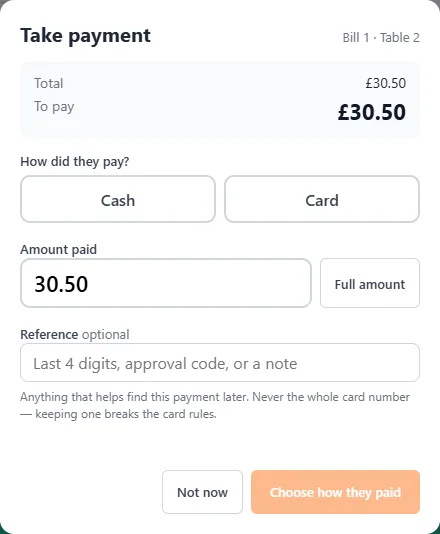
Open the table and press Finish & print bill. Choose how they paid and the amount — Full amount fills it in — and, if you like, a reference: the last four digits of the card, an approval code, or a note. Never the whole card number: the desk refuses one, because keeping it would break the card rules.
Once a table has paid in full, anything still showing as ready to take out for it is marked served, so it drops off your waiters’ phones. A dish the kitchen is still cooking stays on the kitchen screen until the kitchen marks it.
Printing bills
The top of every bill has your name in the middle, your address down the left, and your phone, email, website and tax number down the right — set them on Bill & tax, where the preview shows exactly what will print.
Printers are set up in the front desk app, under Front desk → Printers. Tick Bills on each printer that prints them, and choose which bills it takes: bills made at the front desk, bills from waiters’ phones, or both. With a printer at the counter and one at the bar, the counter can take the desk’s bills and the bar the waiters’, so nothing prints twice.
A waiter prints a bill from their phone: on the floor plan, tap the table and choose Finish & print bill. It comes out of the printer set up for waiters’ bills. If there is none — or only Browser print — the bill pops up on the front desk screen with a Print bill button instead, because a phone cannot print to your receipt printer. For a second copy, the waiter taps Finish & print bill again and chooses to print it again.
Photos and your table's bill
Add a photo to a dish in the Menu Builder: pick the dish, and in the Photo box press Add a photo. Any picture from your phone or computer is fine — it is made smaller before it is sent, so it loads quickly on a customer’s phone. It is saved straight away; you do not need to press Publish. Change photo and Remove are in the same place. Photos are optional: a dish without one looks as it always has.
Photos appear only on your online menu — for orders to collect and at the table. Tapping a photo opens the dish with a large picture. Staff phones, the kitchen and the front desk do not show photos.
Customers at a table can see their bill so far. Anyone who scans a table’s code sees what that table has ordered — including what a waiter keyed — with tax and the total. Before you make the bill it says it is a running total; once you make it, it shows the bill number and what is left to pay. It updates within about a minute, while online ordering is switched on at the desk, and disappears once the table has paid. It never shows anybody’s name.
Your online menu and online orders
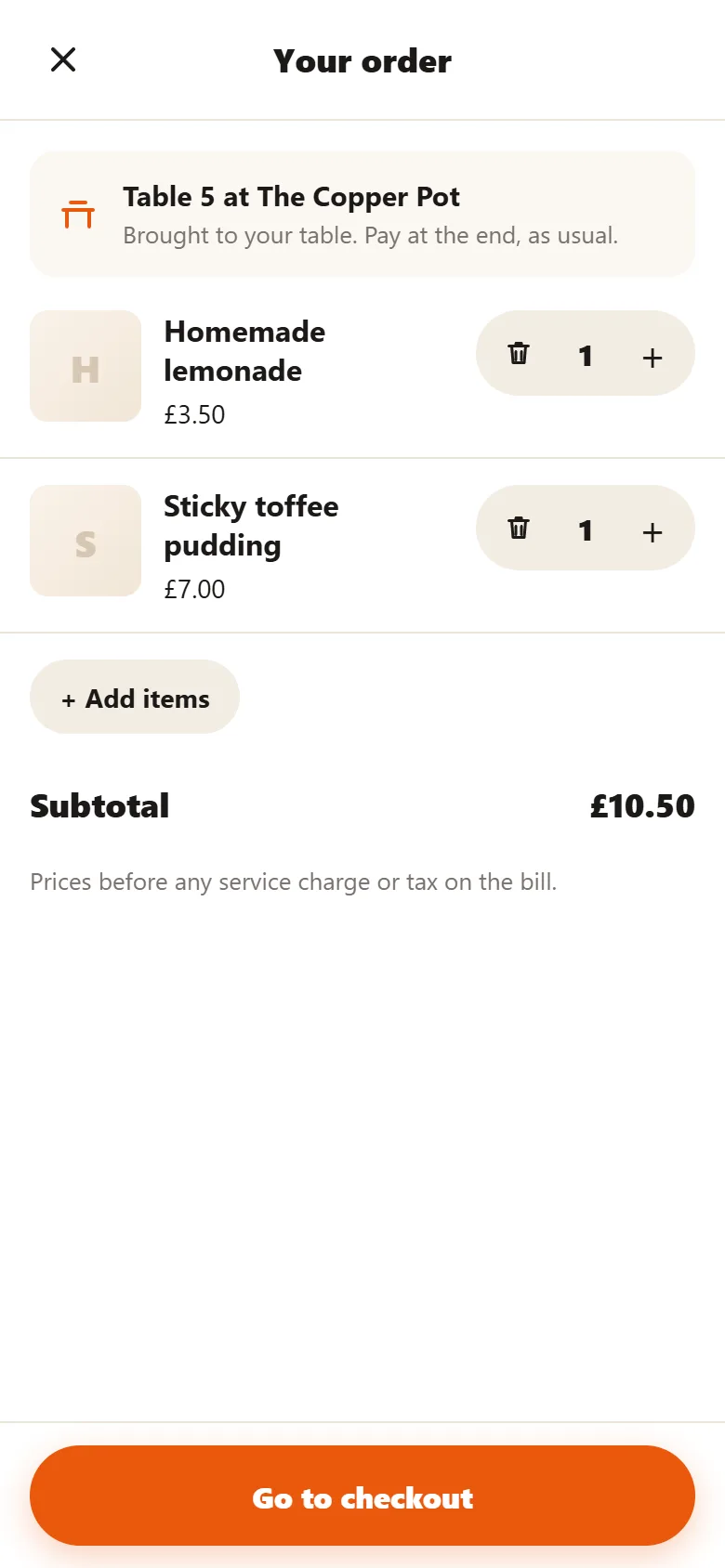
What customers see. Your cover photo across the top, your name, then a Popular row with the dishes you have sold most over the last month — worked out from your own sales, so it appears once you have a few services behind you. Below that is the whole menu, section by section, with photos where you have added them. Tapping a dish opens it on its own page: its choices (marked Required where one must be picked), a note for the kitchen and how many. Their order collects in a basket until they check out.
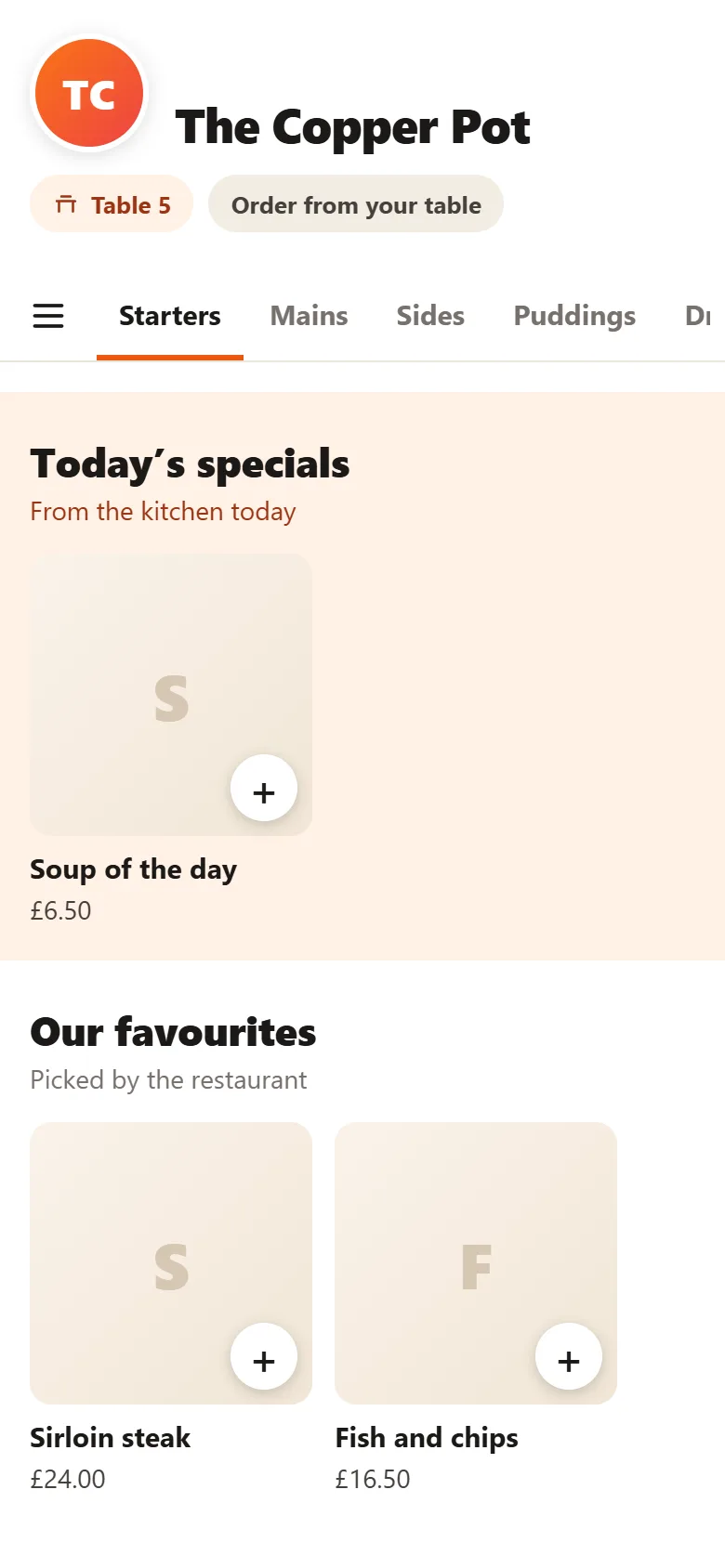
Favourites and today’s specials. In the Menu Builder, pick a dish and use the On your online menu box. Tick ★ Favourite for the dishes you most want people to try: they appear in an Our favourites row at the top, in place of the Popular row. Tick Special today and the dish is shown first, in Today’s specials, with a tag on it. A special stays until you untick it, so remember to take it off when it is finished. Both are saved as soon as you tick them — no need to Publish — and appear only on your online menu.
The cover photo is added in the Layout Editor, in the Online menu cover photo box. A wide picture of your dining room, counter or a spread of dishes works best. It is shown only on your online menu, never on the floor plan, and is saved as soon as you pick it.
Checking out. An order to collect asks for a name and phone number, because it is not paid for online: you call the number if you need to confirm anything. At a table the name is optional. Either way the customer can add a note for the restaurant — an allergy, when they will arrive.
When it takes orders. While you are open: from the moment somebody signs in at the front desk — or, if you have nobody on your rota, the first table seated or order taken — until End Service. Outside those hours your online menu can still be read, and tells customers you are not taking orders online right now. You can leave phone ordering switched on; closing for the night is enough.
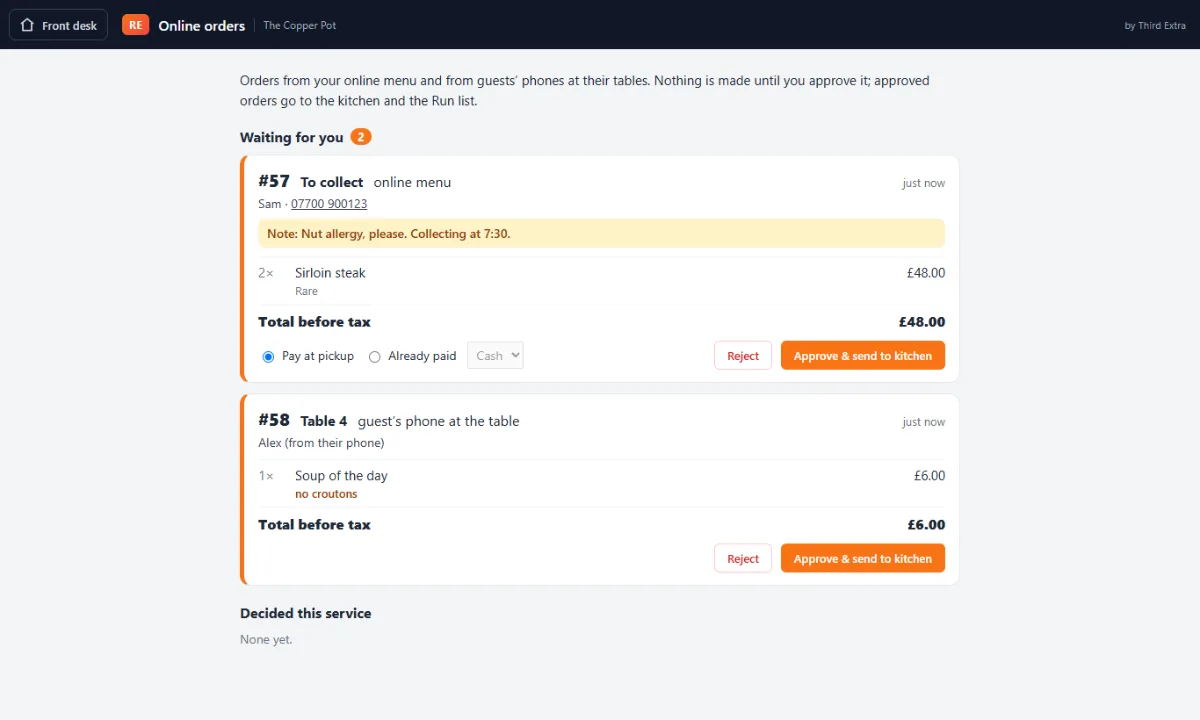
Nothing is made until you approve it. Every order from the online menu, and from a phone at a table, pops up over the floor with a chime. The Online orders button beside New order shows how many are waiting and opens a page with all of them: who it is from, their number (tap to call), their note and the dishes. Approve & send to kitchen sends it to the kitchen and onto the Run list; for an order to collect you can mark it as already paid. Reject tells the customer it was not accepted. The customer’s note is printed on the kitchen ticket and shown on the kitchen screen, the Run list and History. The pop-up says where the order came from: Table 6 ordered from their phone, or An online order to collect.
Letting orders straight through. Approval is on for both kinds until you change it. On the desk, open the Front desk menu and choose Front desk settings. Untick Orders from a table and orders from a guest’s phone at a table go straight to the kitchen; untick Online orders to collect for orders to collect. Each is its own switch, so you can trust your tables and still check every order to collect. An order that goes straight through still shows for a moment at the bottom of the desk, so you know it has arrived, and the customer’s phone says it was accepted. Orders already waiting when you change it still wait for you.
The numbers on a bill, and the one your customer sees
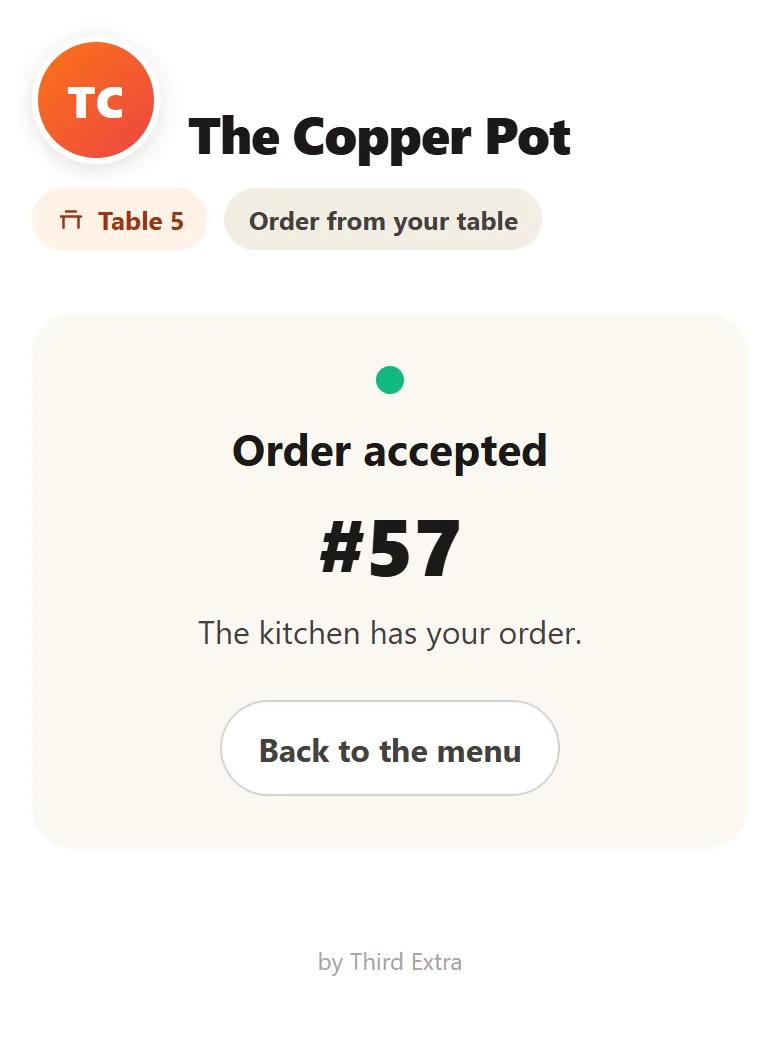
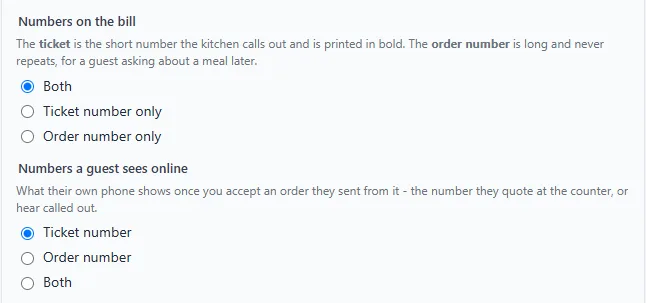
Every order has two numbers. The ticket is short, starts again each service and is the one you call out when food is ready. The order number is long and never repeats, for somebody asking about a meal weeks later. On the desk, Bill & tax sets which of them is printed on your bills — both to start with, with the ticket in bold — and, just below, which one a customer sees on their own phone after they order online. That one starts as the ticket, because it is what they hear called across the room. Their page shows it as soon as the order reaches your counter, says Not accepted yet until you decide, and then Order accepted or not accepted. If you are busy and have not got to it after a minute or two, it tells them to come back to the page shortly or to ring you — on the phone number printed on your bills, so keep that up to date on the same page.
Sales reports and the dashboard
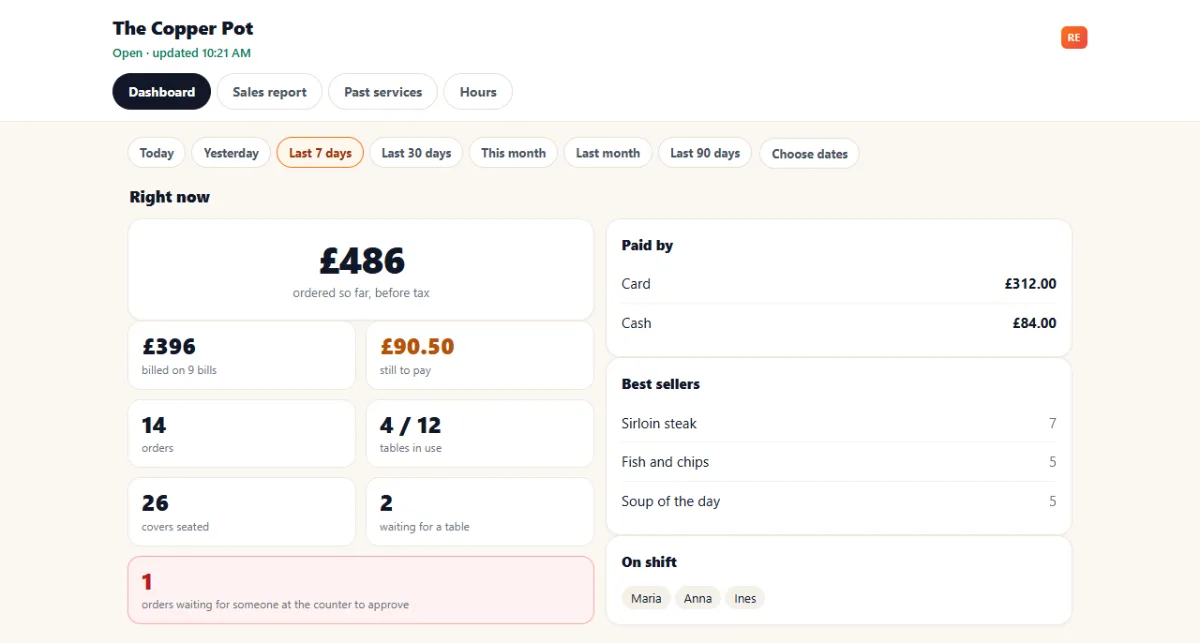
Your owner report link opens on the Dashboard: what is happening right now, then charts of revenue, orders, sales by order type, how customers paid, each person’s sales and hours, and the best sellers. It shows the last 7 days, compared with the 7 days before. Pick Today, Last 30 days, This month or another period at the top, or Choose dates for any two dates.
Sales report shows the same period as a full report: order summary, sales by payment method, the cash summary, taxes, expenses, orders and sales by staff, takeaway and online orders, every dish sold with its share, staff hours and, for more than one day, each day’s totals. Press Save as PDF or print and choose Save as PDF as the printer to keep a copy.
Today’s figures include the service still running. Opening the page asks your front desk for its latest figures, and the page updates itself a few seconds later; the top of the page says when it is waiting, and if the desk does not answer. Otherwise the desk sends an update every hour, and at the end of each service. Times are shown in the time zone of the phone or computer you are looking on. If the page says it could not reach the front desk, the desk has not been in touch for twenty minutes — check it is switched on and online. Reports go back thirteen months. Services from a desk older than version 0.28 have no staff, tax or till figures until the desk updates and sends its history again, which it does by itself.
Several screens, and what happens offline
Every screen showing your front desk sees the same floor. Seat a party on the tablet at the door and it turns red on the one by the pass within a few seconds; clear a table anywhere and it frees everywhere. You no longer need to run the front desk from a single screen.
If two people go for the same table at the same moment, one of them gets it and the other is told which table went and asked to pick again. Nobody is quietly seated on top of anybody else.
What waits for the connection. Your online menu stops taking orders once we notice the desk has gone quiet, and tells customers to order with staff; an order sent before then arrives at the counter when the desk reconnects, and the customer’s page tells them to call you if it is taking a while. A customer’s view of their table’s bill stops updating, your owner’s page shows the last figures it had, and changes made in the Layout Editor or the Menu Builder reach the desk by themselves when it is back. A kitchen screen that is already open keeps working; opening a new one through the kitchen link needs the connection.
The front desk in a web browser is different. Opened from its link rather than in the app, it keeps the floor with us, so seating, clearing tables and the waitlist pause until the connection returns. The floor stays on screen, with a notice that it may be out of date, and it starts working again by itself — nothing is lost, because nothing is ever saved half-way.
Your published floor plan is kept on every screen, so an outage never leaves you looking at a blank room.
When something goes wrong
| “No layout published” | Nothing has been published for this restaurant yet. Open your owner link, build the floor plan and press Publish. If you have published, press Reload Layout. |
|---|---|
| It asks for the PIN again | Normal after about twelve hours, on a new device, or in a private window. It will also ask again if the PIN was recently changed or reset. |
| “Too many incorrect PIN attempts” | Your links are locked for fifteen minutes — all of them, as they share one PIN. The page counts down and lets you back in by itself, or choose Reset it if you have forgotten the PIN. |
| PIN forgotten | Choose Reset your PIN on the PIN screen and we email a one-time code to the restaurant's address — check the spam folder if it is not in the inbox. If nothing arrives, contact us and we will read one out. We can never tell you the old PIN — only reset it. |
| “This link has been turned off” | It was revoked or has expired. Ask us for a replacement. |
| A seated table vanished after publishing | You removed a table that had guests at it. The front desk says how many, so the host can be told rather than the party quietly disappearing. |
| The editor will not open |
You are probably using the front desk link, which cannot edit. Use
the link ending in /edit/.
|
Still stuck? Tell us what the screen says, word for word — the message is usually enough for us to know exactly what happened.
Your staff
Your staff do not get a link from us, and there is nothing for them to install. Everything they need is on the front desk in your restaurant.
Add someone once, at the desk: their first name, last name and phone number. Then they point their own phone's camera at the code on the desk's Staff screen, pick what they are doing that shift, and they are on. The desk remembers the phone, so next time they scan the same code and it already knows who they are.
It all runs over your own wi-fi. Their phones never talk to us, which is why the floor keeps working when your internet does not — and why we cannot tell you who is on tonight. The desk can: its Staff screen lists every phone that has joined, and you can take one back off there when somebody leaves or loses a handset.